See Pulse in action
Choose a workflow below and watch exactly how it works.
Start here
New to Pulse? Watch the overview first: the five core workflows in one quick walkthrough.

Pulse Extractor Overview
See Extract, Research, Capture, Smart Snip and Edit in one quick walkthrough.
A short tour of the five core actions in the Pulse Chrome extension and the kinds of files they produce.
The five capabilitiesExtract
Turn the webpage you are viewing into a structured result.

Turn Webpages Into Usable Data
Extract webpage content and turn it into clean, structured information.
Pulse reads the webpage in front of it, turns the content into a structured result and exports it, for example to Excel, CSV or JSON.
Webpage to ExcelStep-by-step guides: How to extract data from a website to Excel · How to collect website data without coding
Research
Go beyond the current page with public-source research.

Research Companies & Websites
Gather public evidence and organize it into a structured research result.
Pulse researches a real company from publicly available web information and organizes what it finds into a structured result with its sources.
Research companiesStep-by-step guide: Company research tool: research a company from its website
Capture
Save a whole webpage, top to bottom, as PNG or PDF.

Capture the Entire Webpage
Save long webpages from top to bottom as clean PNG or PDF captures.
Pulse captures a long webpage from top to bottom in one go, without stitching screenshots together, and saves it as a PNG image or a PDF.
Full page captureStep-by-step guide: How to capture an entire webpage, top to bottom
Smart Snip
Select exactly what matters and take it away as editable output.

Scrollable Web Data → Excel
Capture data inside a scrollable area and turn it into structured Excel.
Smart Snip selects a scrollable list inside a webpage, captures the content of that whole panel rather than only the visible part, and exports it to Excel.
Select part of a webpage into ExcelStep-by-step guide: How to capture a scrolling div or panel
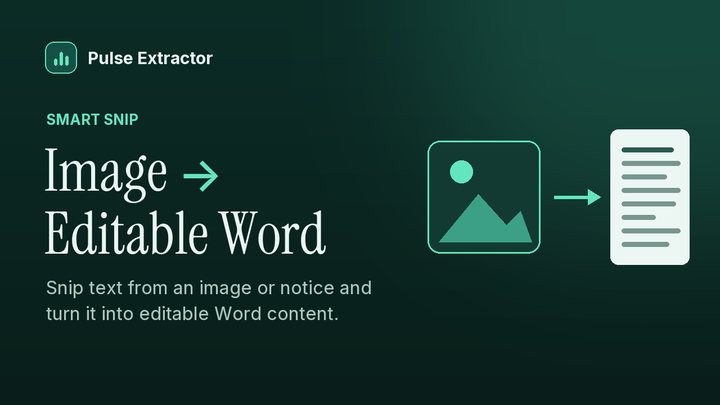
Image → Editable Word
Snip text from an image or notice and turn it into editable Word content.
Smart Snip reads an English notice found as an image on the web and opens the result in Microsoft Word as editable content.
Screenshot to WordStep-by-step guide: How to extract text from an image
Edit
Clean up, annotate and redact a snip before it leaves.
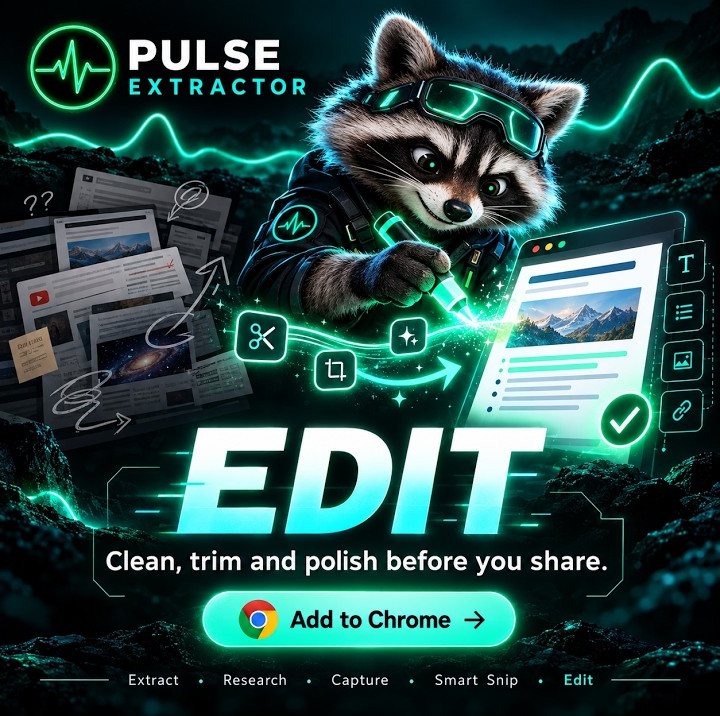
Edit Before You Export
Blur, pixelate, annotate, watermark and clean captured content before sharing.
The Smart Snip Studio edit panel on a snipped notice: watermark, pixelate, blur, highlight boxes and annotations before the result is exported or shared.
Screenshot editorThe videos are hosted on YouTube. Video previews do not contact YouTube until you press play. When you play a video, YouTube receives the normal information required to deliver the video. Playback uses YouTube's privacy-enhanced mode (youtube-nocookie.com). Each video shows the Pulse Extractor Chrome extension as it works today.
From watching to doing.
Each workflow has a page that explains what comes out, what it costs and where its limits are.
Also: How-to guides · Product facts · Proof Lab
Try it on the page you have open.
Install Pulse, create a free account, and turn your first webpage into a structured result. No card required.