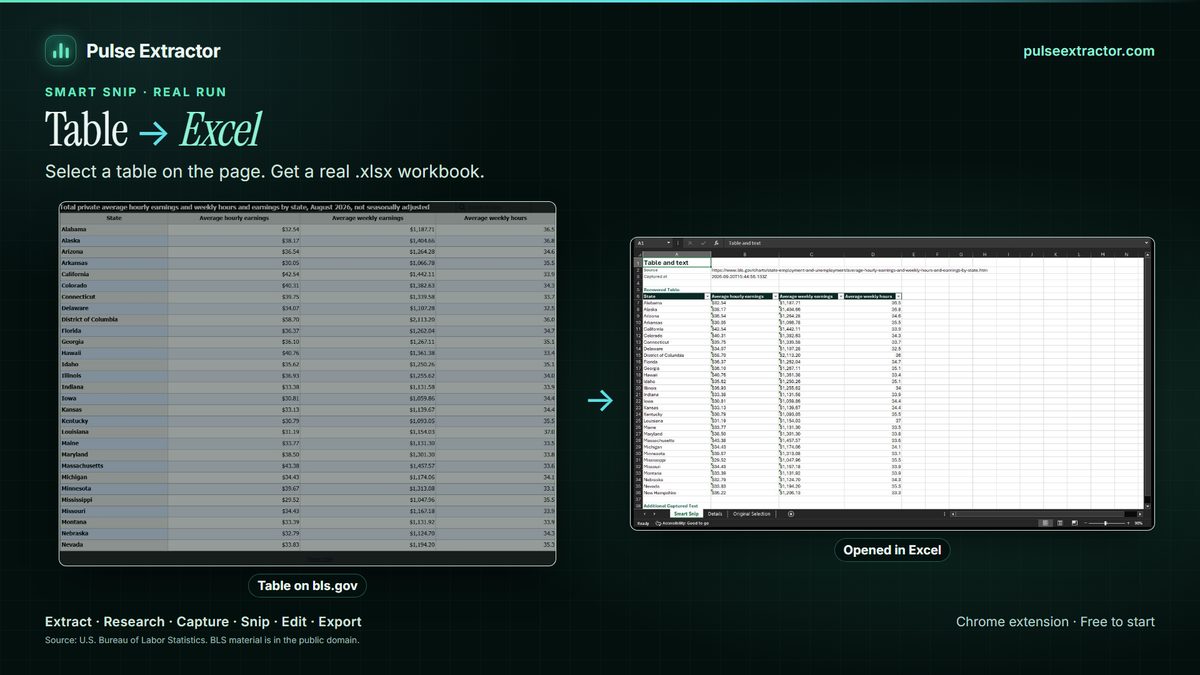
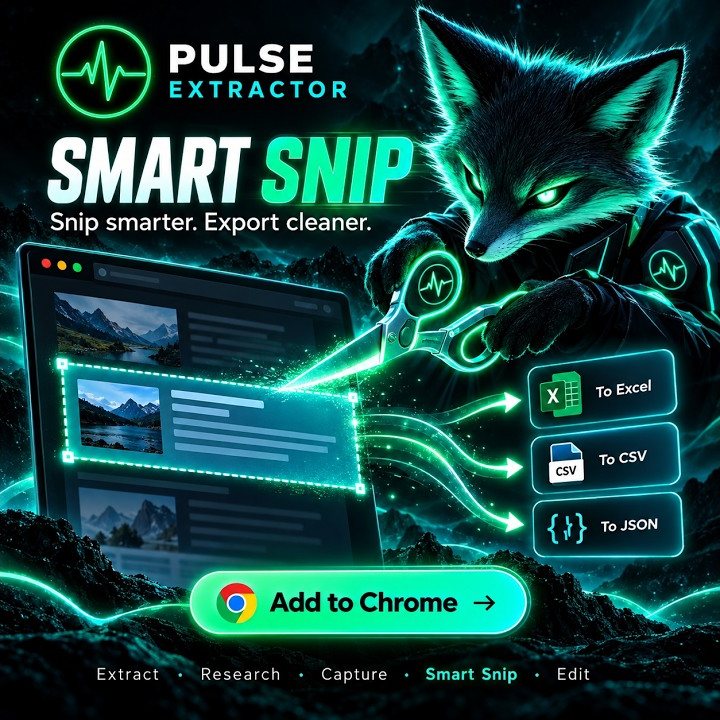
Draw a selection around the region you want with Smart Snip in the Pulse Extractor Chrome extension. Pulse reads the selected region, keeps reliable tables as editable rows, and offers the formats that fit the result, including Excel, CSV, JSON, PDF and PNG.
Watch it in action.
Scrollable Web Data → Excel
Capture data inside a scrollable area and turn it into structured Excel.
In “Scrollable Web Data → Excel”: Smart Snip selects a scrollable list inside a webpage, captures the content of that whole panel rather than only the visible part, and exports it to Excel.
Video previews do not contact YouTube until you press play. When you play a video, YouTube receives the normal information required to deliver the video. Playback uses YouTube's privacy-enhanced mode. All video tutorials
When selecting beats extracting the whole page
- One table among many. Dashboards, reports and statistics pages often carry several tables; you want one.
- A panel, not a page. A pricing box, a fixture list, a spec sheet or a results panel inside a busy layout.
- Text inside a picture. A chart label, a table published as an image or a poster: Smart Snip reads the text in the region you select, in English, Chinese, Japanese, Russian, German, Spanish, French, Portuguese and Italian, with Arabic and Traditional Chinese in Beta.
- You want nothing else. Menus, adverts and footers never enter the file because they were never inside the selection.
How to do it with Smart Snip
- Add Pulse Extractor to Chrome from the Chrome Web Store and sign in with a free account. No card is required.
- Open the page and scroll so the region you want is on screen.
- Click the Pulse icon and choose Smart Snip.
- Drag a rectangle around the table, panel or block you want.
- Pulse opens the result: tables it can read reliably become editable rows, and useful surrounding text is kept.
- Download it as Excel, CSV or JSON, or keep the picture as PNG or PDF.
One selection counts as one Smart Snip use, and editing or copying the result does not use another. Free includes 20 Smart Snips a month, Lite 60, Starter 100 a month, and Pro and Intelligence include unlimited Smart Snip.
Smart Snip or Extract Page?
| You want | Use | Why |
|---|---|---|
| Exactly the region you can see | Smart Snip | Only the selection is read |
| Every table and repeated record on the page | Extract Page | Structures the whole page at once |
| Text that is part of an image | Smart Snip | Reads the pixels you select |
| A company profile from the page | Extract Page, then Research | Fields, contacts and sources |
When Pulse is not the right tool
- The page already offers a CSV or Excel download: use the source's own file.
- You need the same region every hour: a scheduled feed or API suits a schedule; Pulse works when you click.
- You need hundreds of pages: use the site's export or a data collection platform.
Check the result before you rely on it
- The header row is right, especially where the page used two header rows or merged cells.
- Numbers arrived as numbers, so they sort and add up.
- Complex visual layouts may occasionally need a quick review; Smart Snip is live and continuously improving.
Limitations to know
- Language. Smart Snip reads English, Chinese, Japanese, Russian, German, Spanish, French, Portuguese and Italian, with Arabic and Traditional Chinese in Beta. Accuracy varies by language, script and image quality, so review the result.
- Handwriting is not supported today.
- Protected browser pages. Chrome does not let extensions run on its own protected pages, such as browser settings or the Chrome Web Store, so Pulse is unavailable there. That is a browser restriction, not a Pulse setting.
Questions
Do I need to copy anything first?
No. You draw the selection on the page itself; Pulse reads that region directly.
Does it work on a table that is actually an image?
Often, yes: Smart Snip reads text inside the selected pixels, in English, Chinese, Japanese, Russian, German, Spanish, French, Portuguese and Italian, with Arabic and Traditional Chinese in Beta. Check the result, especially for dense or unusual layouts.
Is it free?
Yes, up to 20 Smart Snips a month on the Free plan, with no card required.