On Windows 11, open a screenshot in the Snipping Tool and use Text actions. On a Mac, iPhone or iPad, Live Text lets you select the words in a photo or image as if they were typed. On Android and in Chrome, Google Lens reads text in an image. When the image is on a webpage and you want the words as a file, or a table as rows and columns in Excel, draw a box around it with Pulse Extractor's Smart Snip.
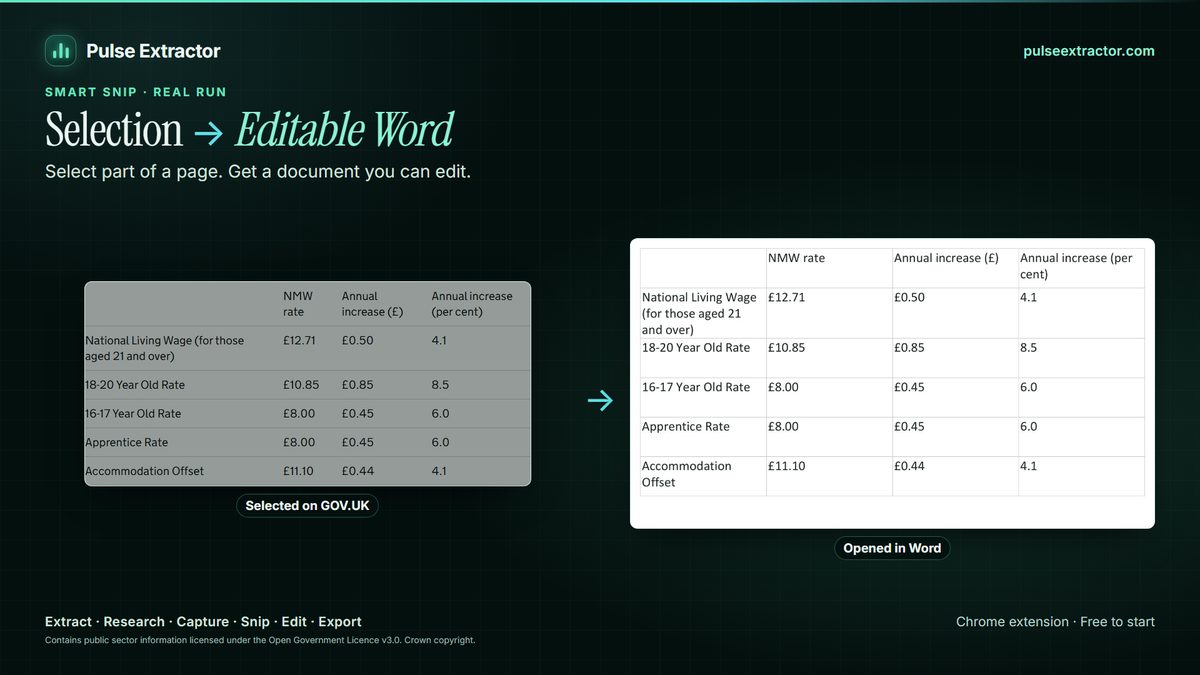
Watch it in action.
Image → Editable Word
Snip text from an image or notice and turn it into editable Word content.
In “Image → Editable Word”: Smart Snip reads an English notice found as an image on the web and opens the result in Microsoft Word as editable content.
Video previews do not contact YouTube until you press play. When you play a video, YouTube receives the normal information required to deliver the video. Playback uses YouTube's privacy-enhanced mode. All video tutorials
First: what kind of text is it?
- Printed text or handwriting? Every method below is far more reliable on printed text. Handwriting is the hard case for all of them.
- Paragraphs or a table? Most tools return lines of text. If the image is a table, the columns usually collapse, so jump to when the image is a table.
- One image or hundreds? The methods here suit one image at a time. For a large batch of files, use a desktop or batch OCR application.
On Windows
Snipping Tool, Text actions (Windows 11)
- Press Win+Shift+S and snip the area with the text, or open an existing screenshot in the Snipping Tool.
- Click the snip notification to open it in the Snipping Tool.
- Choose Text actions in the toolbar. The tool marks the text it found.
- Choose Copy all text, or select just the part you need and copy it.
Recent versions also offer a quick redaction of email addresses and phone numbers in the same view. If you do not see Text actions, update the Snipping Tool from the Microsoft Store.
PowerToys Text Extractor
Microsoft's free PowerToys add-on includes Text Extractor: press Win+Shift+T, drag over any text on screen, and it lands on your clipboard. It reads the languages installed for Windows' own text recognition.
On a Mac, iPhone or iPad
Live Text is built into recent versions of macOS, iOS and iPadOS on supported devices.
- Mac: open the image in Preview or Photos, move the pointer over the text, and drag to select it as you would in a document. Copy with Cmd+C.
- iPhone or iPad: open the photo, then tap the Live Text button, or touch and hold a word and drag the handles. Choose Copy.
It also works on many images in Safari. Live Text reads the image on the device.
On Android and in Chrome: Google Lens
- Chrome on a computer: right-click the image and choose the Google Lens search option (its exact label varies between Chrome versions), then choose Text and select the words to copy.
- Android: open the image in Google Photos or the camera, tap Lens, then Text, and select what you need.
Lens sends the image to Google to be read, which is worth knowing before you use it on anything confidential.
Google Drive and online converters
Upload the image to Google Drive, right-click it and choose Open with, Google Docs. Docs creates a document with the image at the top and the text it recognised underneath. Online "image to text" sites work the same way: you upload the file and copy the result.
Both mean uploading the image. That is fine for a menu or a poster and worth a second thought for a contract, a payslip or an ID document.
When the image is a table
The tools above return text line by line. A table usually comes back as one long column, and the work you were trying to avoid, putting each number back in its column, is still there. Two things handle tables properly:
- Excel's Data from Picture in Microsoft 365 converts a picture of a table into cells. See how to convert a picture of a table to Excel.
- Pulse Smart Snip rebuilds the rows and columns of a table it reads, and exports a real .xlsx, CSV or JSON.
With Pulse Extractor, for images on a webpage
- Add Pulse Extractor to Chrome from the Chrome Web Store and sign in with a free account. No card is required.
- Open the page with the image in Chrome and scroll it on screen.
- Click the Pulse icon, choose Smart Snip, and drag a box around the text.
- Copy the recognised text, or download it as TXT, an editable Word document, or an Excel table if it is one.
Recognition runs inside the extension on your own computer, so the pixels you select are not uploaded to be read. Copying the text never counts as an export. Free includes 20 Smart Snips a month. The image can also come from your computer: Open Local File takes a PNG, JPEG, WebP or PDF, and Ctrl+V pastes a screenshot.
Which method to use
| Method | Where | Tables | Where the image is read |
|---|---|---|---|
| Snipping Tool, Text actions | Windows 11 | As lines of text | On your PC |
| PowerToys Text Extractor | Windows | As lines of text | On your PC |
| Live Text | Mac, iPhone, iPad | As lines of text | On the device |
| Google Lens | Chrome, Android | As lines of text | Sent to Google |
| Google Drive, then Docs | Any browser | As lines of text | Uploaded to Drive |
| Pulse Smart Snip | Images open in Chrome | Rows and columns, to Excel, CSV or JSON | On your computer, in the extension |
Check the result
- Characters that look alike:
0andO,1,landI,5andS, especially in codes and part numbers. - Decimal points and thousands separators, which small or blurred text often loses.
- Line breaks and hyphenation: text from a narrow column comes back broken mid-sentence.
- Anything you will act on, such as an amount, a date or a reference number. Read it against the image.
No text recognition is perfect. Clear, reasonably sized, high-contrast text reads best; very small, blurred, stylised or low-contrast text is where every tool makes mistakes.
When Pulse is not the right tool
- The image is a file on your computer or phone. Your device's built-in tool above is quicker today.
- Hundreds of images. A batch or desktop OCR application is built for volume.
- Handwriting. Not supported by Pulse.
- You are on a phone. Pulse is a desktop Chrome extension; use Live Text or Google Lens.
Limitations of the Pulse method
- Languages. Smart Snip reads English, Chinese, Japanese, Russian, German, Spanish, French, Portuguese and Italian, with Arabic and Traditional Chinese in Beta. Accuracy varies by language, script and image quality.
- Handwriting is not supported.
- Files on your computer. PNG, JPEG, WebP and PDF only.
- Protected browser pages. Chrome does not let extensions run on its own protected pages, such as browser settings or the Chrome Web Store, so Pulse is unavailable there. That is a browser restriction, not a Pulse setting.
Questions
Is there a free way to extract text from an image?
Yes. Windows 11 (Snipping Tool Text actions), macOS and iOS (Live Text), Android and Chrome (Google Lens) all include one. Pulse Extractor's Free plan includes 20 Smart Snips a month for images on webpages.
Can I extract text from a screenshot?
Yes. A screenshot is an image like any other: open it in the Snipping Tool on Windows, in Preview or Photos on a Mac, or use Google Lens on it.
Can these tools read handwriting?
Some try, with mixed results. Pulse Extractor does not support handwriting today. For handwriting that matters, type it up or check every word.