Chrome hides a Capture full size screenshot command in its developer tools. Firefox has Save full page in its screenshot tool, and Edge has Capture full page in Web capture. For one click capture in Chrome, saved as a high resolution PNG or a multi-page PDF, use an extension such as Pulse Extractor's Capture Full Page.
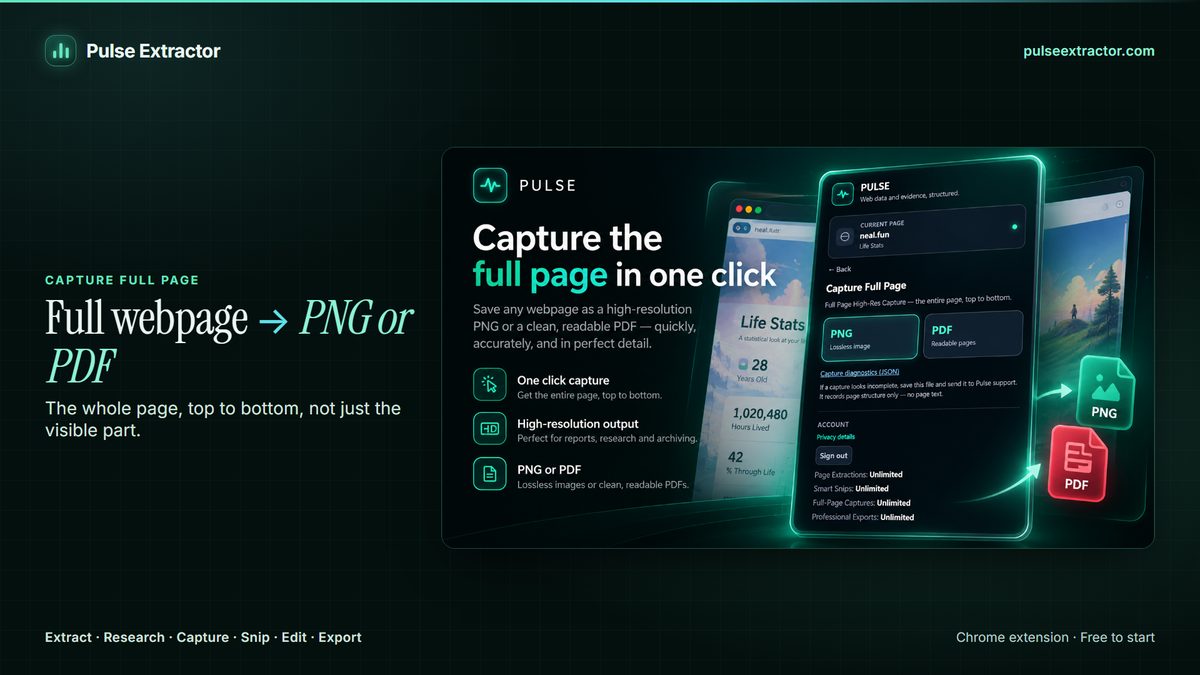
Watch it in action.
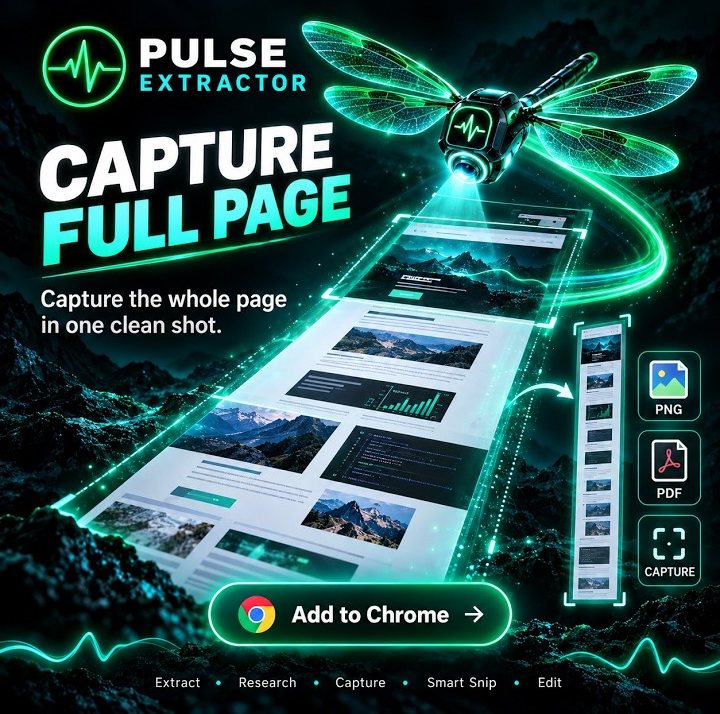
Capture the Entire Webpage
Save long webpages from top to bottom as clean PNG or PDF captures.
In “Capture the Entire Webpage”: Pulse captures a long webpage from top to bottom in one go, without stitching screenshots together, and saves it as a PNG image or a PDF.
Video previews do not contact YouTube until you press play. When you play a video, YouTube receives the normal information required to deliver the video. Playback uses YouTube's privacy-enhanced mode. All video tutorials
Why a normal screenshot is not enough
Your operating system's screenshot captures the pixels on your display, so anything below the fold is missing. Stitching several screenshots together by hand is slow and leaves seams. A full page capture renders or scrolls the whole page and saves it as one continuous file.
Method 1: Chrome's developer tools
- Open the page and let it finish loading.
- Open developer tools with F12 or Ctrl+Shift+I (Cmd+Option+I on a Mac).
- Open the command menu with Ctrl+Shift+P (Cmd+Shift+P on a Mac).
- Type
screenshotand choose Capture full size screenshot. - Chrome saves a PNG to your downloads folder.
It is free and built in, but it is tucked away, it only produces PNG, and results can vary on pages with animations, sticky elements or images that load as you scroll.
Method 2: Firefox and Edge built in tools
Firefox: right-click an empty part of the page, choose Take Screenshot, then Save full page, and download or copy the image.
Microsoft Edge: open Web capture from the menu or with Ctrl+Shift+S, choose Capture full page, then save.
Both are good choices if you already use those browsers. Neither helps inside Chrome.
Method 3: Capture Full Page with Pulse Extractor
- Add Pulse Extractor to Chrome from the Chrome Web Store and sign in with a free account. No card is required.
- Open the page you want to keep and let it finish loading. Capture keeps the page as it appears, so close any cookie banner or pop-up you do not want in the file.
- Click the Pulse icon in the Chrome toolbar and choose Capture Full Page.
- Save it as a high resolution PNG, one continuous image, or as a multi-page PDF that paginates and prints sensibly.
Pulse scrolls the entire page and stitches it into one image, and the workflow continues after the popup closes. Free includes 20 Full-Page Captures a month and Starter, Pro and Intelligence capture without limits. A capture's own PNG or PDF is included, and it never uses a Research run, a Page Extraction or a Professional Export.
PNG or PDF?
| Format | Choose it when | Keep in mind |
|---|---|---|
| PNG | You want one continuous, high resolution picture of the page to annotate, share or compare | A very long page makes a very tall image |
| The page is long and you need something that paginates, prints and attaches to an email | If you need to search or copy the text inside, check the file before relying on it |
Saving a webpage as a JPG image
Chrome's developer tools and Pulse both save the page as PNG, which keeps text sharp. If a form or an upload asks for a JPG, open the PNG in Paint on Windows or Preview on a Mac and save or export it as JPEG; the file gets smaller and text edges soften slightly. Some capture extensions save JPEG directly; the comparisons list which ones say so.
Pages that trip up full page capture
Inner scrolling panels. A few app-style pages, such as dashboards, web mail and chat apps, scroll inside an inner panel rather than the page itself. On those, Pulse currently captures what is on screen rather than the whole panel. Ordinary websites, including very long ones, capture top to bottom. Browser built in tools often have the same difficulty, because the part that scrolls is not the page itself. See how to capture a scrolling div or panel, and how to capture only part of a long page.
- Protected browser pages. Chrome does not let extensions run on its own protected pages, such as browser settings or the Chrome Web Store, so Pulse is unavailable there. That is a browser restriction, not a Pulse setting.
- Content that has not loaded. Wait for the page to finish loading before you capture, and check the result before you rely on it.
- Overlays. Banners, chat bubbles and sign up prompts are part of the page as it appears, so dismiss them first.
When a screenshot is not what you need
- You need the data on the page, not a picture of it. Extract it into rows instead; see how to extract data from a website to Excel.
- You want a clean, readable document. A report built from the page's content drops the menus and ads; see how to save a full webpage as PDF.
- You need independent proof of what a page said on a date. A file you made yourself is easy to question. Use an independent web archiving service.
- You want to be told when a page changes. That is a page monitoring tool's job; Pulse captures when you click.
Questions
Does it capture below the fold?
Yes. On an ordinary website Pulse captures the complete page from top to bottom, however long it is, not only the part on screen.
How many full page captures does the Free plan include?
Free includes 20 Full-Page Captures a month and Starter, Pro and Intelligence capture without limits. A capture's own PNG or PDF is included, and it never uses a Research run, a Page Extraction or a Professional Export.
Can I capture a page I am signed in to?
Capture works on the tab you have open, so it records what that tab shows you. Treat the file with the same care as the page itself, and see Responsible Use for what that means in practice.