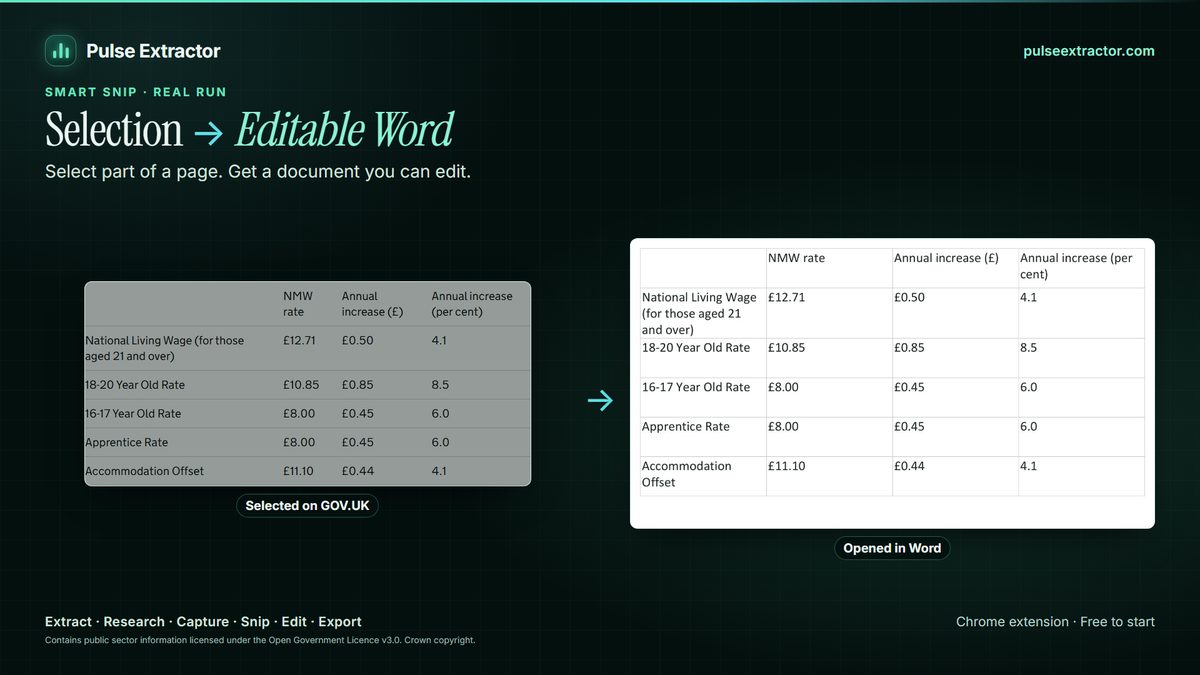
Select the image or region with Smart Snip in the Pulse Extractor Chrome extension. Pulse recognizes the text in the selected pixels, rebuilds tables it can read reliably as editable rows, and lets you copy the text or download Excel, CSV, JSON, PDF or PNG. It reads English and, since 0.5.8, several other languages.
What OCR is, in one paragraph
Optical character recognition reads letters from pixels. On a webpage, ordinary text is already text, so you only need OCR when the words are part of an image: a screenshot, a chart, a scanned document shown as an image, or a table exported as a picture.
Your options
| Method | Good for | Watch out for |
|---|---|---|
| Google Lens (right-click an image in Chrome) | Quick text from a single image | Tables usually come back as loose lines of text |
| Save the image, then a desktop OCR app | Batch work on saved files | Extra steps; the page context is lost |
| Pulse Smart Snip | A region of the page, including tables, straight to Excel/CSV/JSON | English and several other languages; review dense layouts |
How to do it with Pulse
- Add Pulse Extractor to Chrome from the Chrome Web Store and sign in with a free account. No card is required.
- Open the page and bring the image or region on screen.
- Click the Pulse icon, choose Smart Snip, and drag around the region.
- Copy the recognized text, or download the table as Excel, CSV or JSON.
Recognition runs inside the extension on your computer for Smart Snip, and one selection counts as one Smart Snip use. Free includes 20 a month.
When Pulse is not the right tool
- Hundreds of saved image files: a batch or desktop OCR tool is built for volume.
- Handwritten notes, or a script Pulse does not read yet (Urdu, Hindi, Persian and Turkish are planned, not shipping).
- Text that is already selectable on the page: just copy it.
Check the result
- Digits that look alike (0 and O, 1 and l) in codes and part numbers.
- Symbols, superscripts and units in technical tables.
- Row and column alignment in dense tables.
Where Pulse is unsure about part of a table, it keeps that part visible for review rather than guessing.
Limitations to know
- Languages. English, Chinese, Japanese, Russian, German, Spanish, French, Portuguese and Italian, with Arabic and Traditional Chinese in Beta. Accuracy varies by language, script and image quality, so review the result.
- Handwriting is planned for later, not supported today.
- Files on your computer. Open Local File takes PNG, JPEG, WebP and PDF.
- Protected browser pages. Chrome does not let extensions run on its own protected pages, such as browser settings or the Chrome Web Store, so Pulse is unavailable there. That is a browser restriction, not a Pulse setting.
Questions
Is Smart Snip OCR free?
Yes, within the Free plan's 20 Smart Snips a month. Lite includes 60 and Starter 100; Pro and Intelligence are unlimited.
Can it read a table inside an image?
Often, yes. Pulse rebuilds tables it can read reliably as editable rows and keeps uncertain parts visible for you to review.
Which languages does it read?
Smart Snip reads English, Chinese, Japanese, Russian, German, Spanish, French, Portuguese and Italian, with Arabic and Traditional Chinese in Beta. No recognition is perfect, so review the result, especially in a Beta language.