Extract text from an image, right where you see it
Draw a box around a picture, a screenshot, a scanned page or a chart on screen. Pulse reads the text inside it and gives it back as text you can copy, or as Word, Excel, CSV or TXT. Recognition runs inside the extension on your own computer.
- Live now in Pulse Extractor 0.5.8
- Free plan, no card required
- Runs in Chrome on the page you are viewing
Three steps.
- 01Open the page or image in Chrome
- 02Click the Pulse icon, choose Smart Snip and draw a box around the text
- 03Copy the text, or download TXT, Word or Excel
Watch it in action.
Image → Editable Word
Snip text from an image or notice and turn it into editable Word content.
In “Image → Editable Word”: Smart Snip reads an English notice found as an image on the web and opens the result in Microsoft Word as editable content.
Video previews do not contact YouTube until you press play. When you play a video, YouTube receives the normal information required to deliver the video. Playback uses YouTube's privacy-enhanced mode. All video tutorials
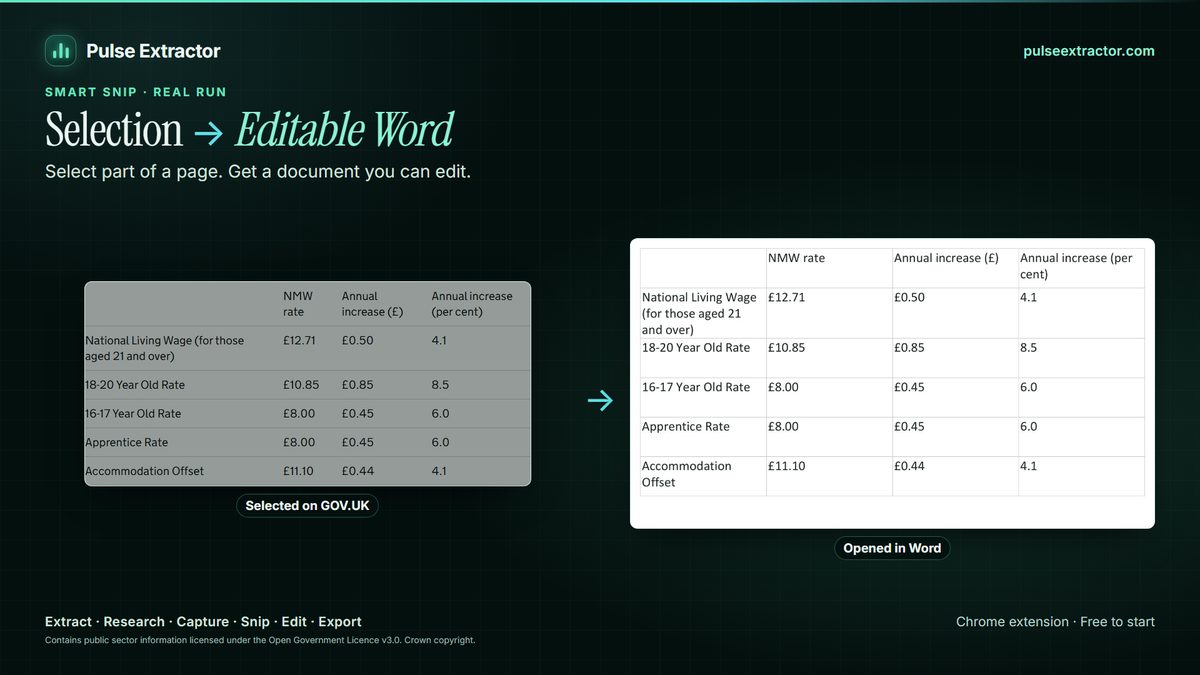
An image text extractor that works on the page you are reading
Text inside a picture is the text you cannot select: a screenshot someone sent you, a scanned notice in a web viewer, a slide, an infographic, a product label, a chart in a report. The usual workaround is to save the image, upload it to a converter site, then copy the result back, and that is three steps and one upload of something you may not want to share. Smart Snip reads it in place. You draw a box on the page you already have open, and the words come back as real text.
Pulse does more than return a block of words. It works out what the selection is, so a paragraph comes back as a paragraph, a table comes back as rows and columns you can take straight to Excel, and a laid-out page can become an editable Word document instead of a flat transcript. The recognition itself runs inside the extension on your computer: the pixels you select are read locally rather than sent off to be converted.
It is honest about its limits. Smart Snip reads English, Chinese, Japanese, Russian, German, Spanish, French, Portuguese and Italian, with Arabic and Traditional Chinese in Beta; accuracy varies by language and script. Handwriting is not supported. Clear, reasonably sized text reads best, and very small, blurred or low-contrast text is the hard case for any OCR, so Pulse shows you what it read before you export it.
What comes out, and where it can go.
- Copy textThe recognized words on your clipboard. Copying never counts as an export.
- TXTPlain text in a file, for notes, search or anything that just needs the words.
- Word and PowerPointAn editable document or slide that keeps the layout and real tables.
- Excel, CSV, JSONWhen the text is a table, the rows and columns, typed and ready to sort.
Free to start. Pay when you need more.
No card for the free plan. Copying a result never counts against anything. Annual plans are also available on the pricing page.
- Free$0
- 20 Smart Snips a month
- 20 Page Extractions a month
- 20 Full-Page Captures a month
- 10 Professional Exports a month
- 1 lifetime Research run
- Lite$6.99/month
- 100 Page Extractions a month
- 100 Full-Page Captures a month
- 100 Professional Exports a month
- 60 Smart Snips a month
- 3 Research runs a month
- Starter$12/month
- Unlimited Page Extractions
- Unlimited Full-Page Captures and Professional Exports
- 100 Smart Snips a month
- 15 Research runs a month
- Pro$29/month
- Everything in Starter
- Unlimited Smart Snip
- 40 Research runs a month
- Intelligence$59/month
- Everything in Starter
- Unlimited Smart Snip
- 100 Research runs a month
Is it free?
Yes, to start. Free includes 20 Smart Snips a month with no card. Copying the recognized text never counts as an export; downloading a file counts as one of Free's 10 Professional Exports a month. Starter includes 100 Smart Snips a month, and Pro and Intelligence are unlimited.
Is my image uploaded to be read?
No. Smart Snip recognition runs inside the extension on your computer. Account and usage checks talk to Pulse servers, but the pixels you select are read locally.
Which images does it work on?
Anything you can see in a Chrome tab: a picture or screenshot on a webpage, a scanned page in an online viewer, a chart, a slide, or an online image opened in its own tab. Chrome's own protected pages, such as settings and the Chrome Web Store, are off limits to every extension.
Can I use an image file saved on my computer?
Yes. Open Local File opens a PNG, JPEG, WebP or PDF from your computer; it is opened on your device and is not uploaded. You can also paste a screenshot with Ctrl+V.
Which languages does it read?
English, Chinese, Japanese, Russian, German, Spanish, French, Portuguese and Italian, with Arabic and Traditional Chinese in Beta. Urdu, Hindi, Persian and Turkish are planned. No recognition is perfect, so review the result. Handwriting is not supported.
What if the image contains a table?
Pulse rebuilds it as a table rather than a run of words, so you can download it as Excel, CSV or JSON, or as a real table in Word or PowerPoint.
How accurate is it?
Clear, reasonably sized text comes through accurately. Very small, blurred, stylised or low-contrast text is harder, as it is for any text recognition, so check anything that matters. Pulse shows you what it read before you export it.
Reviewed by the people already using it.
Exactly what our office needed to speed up data collection. It’s straightforward & efficient. Great productivity booster.
Pulse Extractor saves our team a ton of time on web research. simple, fast, and genuinely useful..
Real published reviews, quoted exactly. Read them on the Chrome Web Store
Read the text in the next image you find.
Install Pulse, create a free account, and snip your first image in under a minute. No card required.