For a simple HTML table, copy and paste or Google Sheets IMPORTHTML is enough. For tables built from cards or grids, several tables on one page, or when you want CSV and JSON as well as Excel, use a tool that reads the rendered page, such as Pulse Extractor's Extract Page, or Smart Snip to select just the table you want.
Why website tables are harder than they look
- Looks like a table, is not one. Many sites build rows from styled blocks rather than table markup. Spreadsheet imports cannot see those at all.
- Complex headers. Headers that span two rows or merged cells rarely survive a plain copy.
- Script loaded rows. Some tables are filled in after the page loads, so tools that fetch the raw page get an empty shell.
- Only some rows exist. Long tables are often paginated or only render the rows near your scroll position.
Method 1: Copy and paste
Select the table, copy it and paste it into Excel or Google Sheets. For a short, real HTML table this is hard to beat. Check that the columns lined up, and expect to tidy links, footnote markers and merged cells by hand.
Method 2: Google Sheets IMPORTHTML
=IMPORTHTML("https://example.com/page", "table", 2) imports the second table on a public page. Change the number until the preview shows the table you want, then use File, Download, Comma Separated Values (.csv) for a CSV file. It only sees real table and list markup, fetched by Google rather than by your browser, so it will not work behind a sign in or on tables loaded by scripts.
Method 3: If you write code
In Python, pandas.read_html(url) returns every table on a page as a DataFrame, which you can save with to_csv or to_excel. It needs an HTML parser such as lxml installed, it reads real table markup only, and it does not run the page's scripts, so it shares the blind spots of the spreadsheet imports.
Method 4: Pulse Extractor
Extract Page: every table and list on the page
- Add Pulse Extractor to Chrome from the Chrome Web Store and sign in with a free account. No card is required.
- Open the page and let the rows you need load.
- Click the Pulse icon and choose Extract Page.
- Pulse identifies tables and repeated, comparable records, whether or not they use table markup, and structures each into rows with real fields.
- Export to Excel, CSV or JSON, or copy the result.
Smart Snip: just the table you select
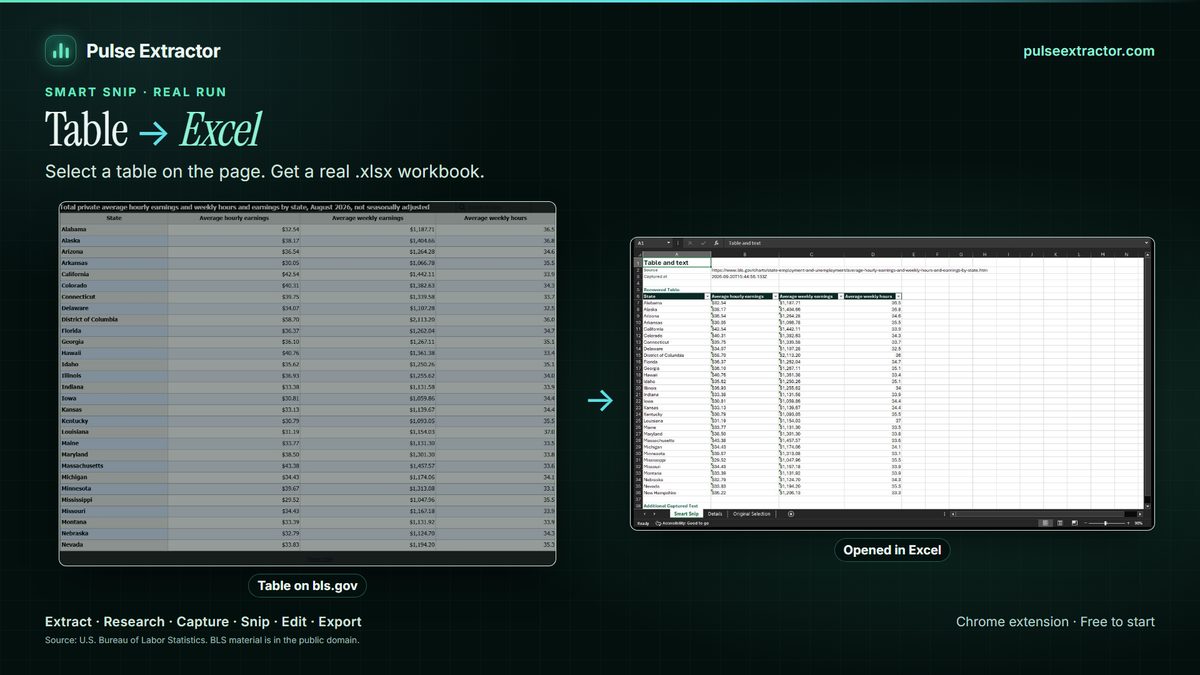
Smart Snip is in the current Chrome Web Store release, 0.5.8. When a page holds many tables and you only want one, Smart Snip lets you select that region. Pulse keeps reliable tables editable, retains useful surrounding text, and offers the formats that fit the result, including Excel, CSV, JSON, PDF and PNG. One selection counts as one Smart Snip use, and editing or copying it does not use another. Free includes 20 Smart Snips a month, Lite 60, Starter 100 a month, and Pro and Intelligence include unlimited Smart Snip.
Choosing a method
| Your table | Good choice | Why |
|---|---|---|
| A short HTML table | Copy and paste | Nothing to set up |
| A public table you want in a shared sheet | Google Sheets IMPORTHTML | Lives in the sheet and can be recalculated |
| Rows built from cards or blocks | Pulse Extract Page | Reads repeated items, not only table markup |
| One table among many on a busy page | Pulse Smart Snip | Select exactly the region you want |
| Hundreds of pages of tables | The site's export or API, or a data collection platform | Built for volume and schedules |
When Pulse is not the right tool
- You need the same table every day or every hour. A spreadsheet import that refreshes, or the site's own data feed, suits a schedule. Pulse works when you click.
- You need tables from hundreds of pages. Use the site's export or API, or a dedicated data collection platform built for volume.
- The table is already offered as a download. A CSV or Excel link on the page is the source's own format, so use it.
- The table is inside a scanned document or an image. See the limitations below.
Check the result before you rely on it
- The header row is right, especially where the page used two header rows.
- The row count matches what the page shows.
- Numbers arrived as numbers, so they sort and add up.
- Units and currencies stayed attached to the right columns.
Why a screenshot of the table is not enough
A screenshot is quick, and for showing someone what a table looked like it is the right tool. But a picture of a table cannot be sorted, filtered, totalled or pasted into a model, and reading it back into cells later is a text-recognition job with its own errors. When the next step is a spreadsheet, take the rows and columns themselves: copy, import or extract them as data, and keep a capture alongside only if you need a record of how the page looked.
Long grids that only show some rows
Data grids built for thousands of rows usually keep only the rows near your scroll position in the page. Copying them, or extracting them at one moment, returns that window, not the whole table. How to export a large web table to Excel explains how to tell, and what returns every row.
Limitations to know
- Tables inside images or scanned documents. Smart Snip reads a table inside an image in English, Chinese, Japanese, Russian, German, Spanish, French, Portuguese and Italian, with Arabic and Traditional Chinese in Beta, and can open a PNG, JPEG, WebP or PDF from your computer. No recognition is perfect and scans vary in quality, so check the rows before you rely on them.
- Rows that are not on the page. Pulse works on the page you are actively viewing, when you click. It does not crawl a site, follow pagination on its own or run on a schedule. Extract each page of a paginated table.
- Protected browser pages. Chrome does not let extensions run on its own protected pages, such as browser settings or the Chrome Web Store, so Pulse is unavailable there. That is a browser restriction, not a Pulse setting.
- Allowance. The Free plan includes 20 Page Extractions and 10 Professional Exports a month; Starter, Pro and Intelligence make both unlimited.
Questions
Does a table need table markup for Pulse to extract it?
No. Pulse works from repeated, comparable items rather than from a table tag, so product grids, directory listings and search results usually structure into rows as well.
What is the difference between Extract Page and Smart Snip?
Extract Page structures the whole page you are viewing, today. Smart Snip structures only the region you select, which helps when a page holds several tables and you want one.
Can I get the table as JSON?
Yes. Results export as JSON as well as Excel and CSV.