For a quick copy, use Chrome's Print dialog and choose Save as PDF. If the PDF must look like the page on screen from top to bottom, use a full page capture saved as PDF. If you want a readable document without menus, ads and banners, export a report built from the page's content. Pulse Extractor does the last two.
First, decide which PDF you want
| You want | Method | What you get |
|---|---|---|
| A quick copy with selectable text | Browser Print, Save as PDF | The page reflowed for paper through the site's print styles |
| The page exactly as it looks | Pulse Capture Full Page, PDF | The complete page, top to bottom, paginated |
| A clean document of the findings | Pulse Extract Page, PDF Report export | Organized sections and readable tables, without page furniture |
Method 1: Chrome's Save as PDF
- Open the page and press Ctrl+P (Cmd+P on a Mac).
- Set Destination to Save as PDF.
- Under More settings, adjust paper size, margins and scale. Turn on Background graphics to keep colours and images the site sets as backgrounds, and turn off Headers and footers if you do not want the address and date printed on each page.
- Choose Save.
It is built in and keeps text selectable and searchable. The trade offs: the page is reflowed for paper, so the layout can differ from what you saw; navigation, ads and cookie banners often print too; wide tables can be cut off or squeezed; and some sites hide content when printing.
Method 2: A full page capture saved as PDF
- Add Pulse Extractor to Chrome from the Chrome Web Store and sign in with a free account. No card is required.
- Open the page, let it finish loading, and close any banner or pop-up you do not want kept.
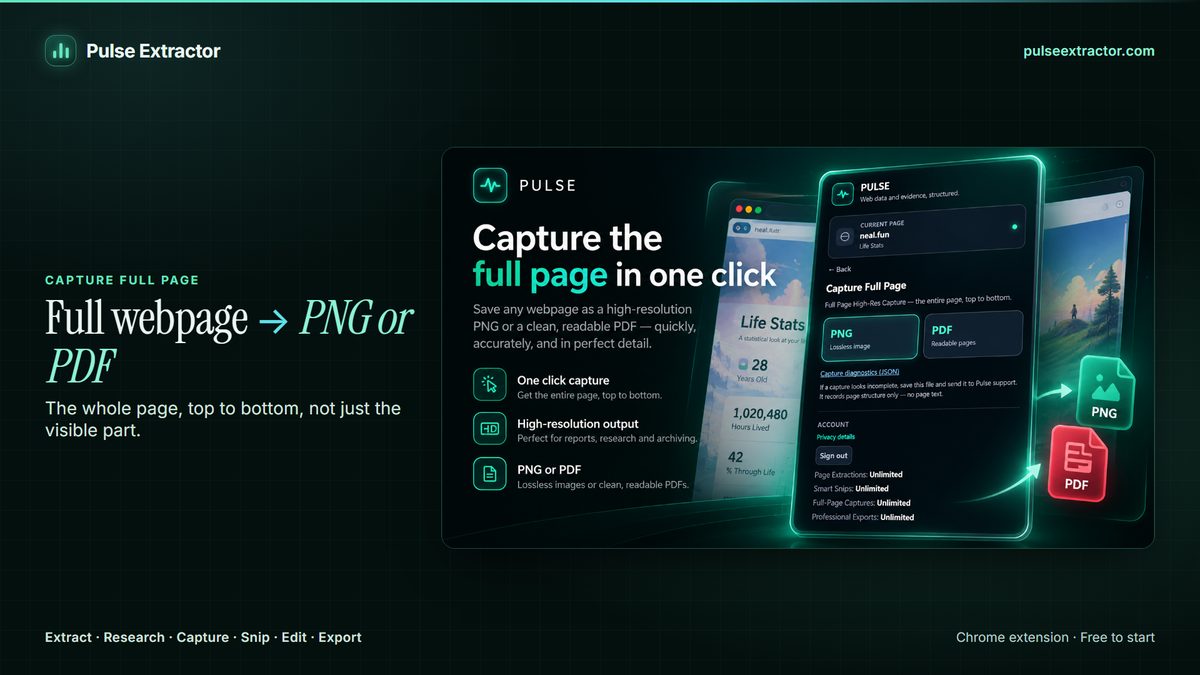
- Click the Pulse icon and choose Capture Full Page.
- Save it as a multi-page PDF, or as a PNG if you prefer one continuous image.
This keeps the page as it appears rather than reflowing it. Free includes 20 Full-Page Captures a month and Starter, Pro and Intelligence capture without limits. A capture's own PNG or PDF is included, and it never uses a Research run, a Page Extraction or a Professional Export. If you need to search or copy the text inside the PDF, open the file and check before you rely on it; the browser's Save as PDF is the method that keeps text as text.
Method 3: A PDF report built from the page
- Open the page and click the Pulse icon.
- Choose Extract Page.
- Download the PDF Report export.
The report is built from the structured result instead of the page's layout: organized sections, tables that wrap and paginate properly, and no navigation bars, ads or cookie banners. It is a report of what Pulse structured from the page, not a copy of every paragraph and image, so use a capture when you need the page itself. A Research result can export as a fuller report, with sections such as Executive Summary, Company Profile, Key People & Contacts, Procurement and Sources where the evidence supports them.
Limitations to know
Inner scrolling panels. A few app-style pages, such as dashboards, web mail and chat apps, scroll inside an inner panel rather than the page itself. On those, Pulse currently captures what is on screen rather than the whole panel. Ordinary websites, including very long ones, capture top to bottom. Printing those pages often has the same problem.
- Protected browser pages. Chrome does not let extensions run on its own protected pages, such as browser settings or the Chrome Web Store, so Pulse is unavailable there. That is a browser restriction, not a Pulse setting.
- One page per file. Each capture or report covers one page. If you need several pages in one PDF, combine the files with a PDF tool.
- Allowance. Free includes 20 Full-Page Captures a month and Starter, Pro and Intelligence capture without limits. A capture's own PNG or PDF is included, and it never uses a Research run, a Page Extraction or a Professional Export. The PDF Report comes from Extract Page, which counts toward Free's 20 Page Extractions a month, and downloading it is one of Free's 10 Professional Exports a month. Both are unlimited on Starter, Pro and Intelligence.
When Pulse is not the right tool
- You only need a quick copy with searchable text. The browser's Save as PDF is already built in.
- You need many pages combined into one PDF automatically. Pulse makes one file per page, when you click.
- The PDF has to stand as evidence. A PDF you made yourself shows what you saw, but it is easy for someone else to question. If you may need to prove what a page said on a particular date, also save it with an independent web archiving service.
Questions
Which method keeps the page looking exactly as it does on screen?
A full page capture. Printing reflows the page for paper, and a PDF Report reorganizes the content into sections.
Does saving a PDF with Pulse use a Research run?
No. Capture and exports never use a Research run. A Research run is used only when you click Research.
Can I get the page as an image instead?
Yes. Capture Full Page also saves one continuous, high resolution PNG.