If you use Microsoft 365, Excel's own Data from Picture (on the Data tab) converts a picture or screenshot of a table into cells and asks you to review anything it is unsure of. If the table is on a webpage open in Chrome, Pulse Extractor's Smart Snip reads it in place and downloads a real .xlsx. Either way, check the figures before you rely on them.
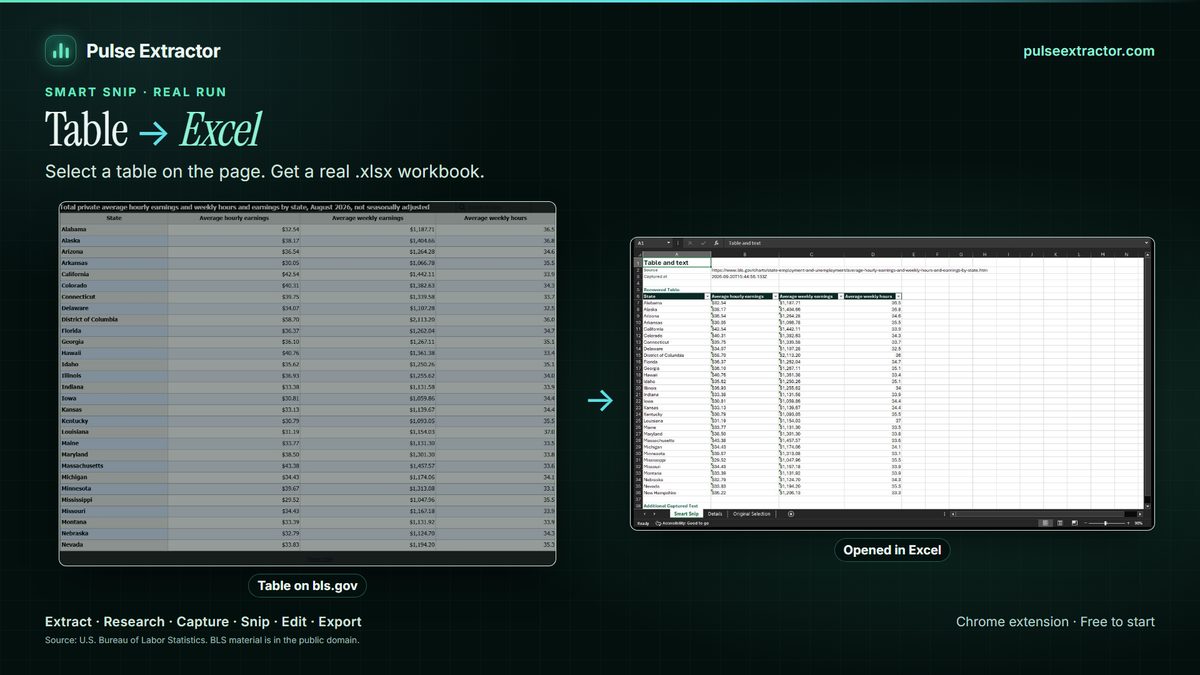
Why a picture of a table is harder than a picture of text
Reading the characters is half the job. The other half is structure: which number belongs to which row and column, which header spans two columns, where a cell is empty. A tool that only reads text gives you the words in reading order and leaves the structure to you, which is why pasted results land in one column.
Method 1: Excel's Data from Picture
- Save or copy the picture of the table.
- In Excel, open the Data tab and choose From Picture, then Picture From File or Picture From Clipboard.
- Excel analyses the picture and shows a preview. Cells it is unsure of are highlighted: click each one, compare it with the picture, and correct or accept it.
- Choose Insert Data to place the table in the worksheet.
It is available in Microsoft 365 versions of Excel, and the Excel mobile apps offer the same thing from the camera. If you do not see it, your Excel version or plan may not include it.
Method 2: Pulse Smart Snip, for a table on a webpage
- Add Pulse Extractor to Chrome from the Chrome Web Store and sign in with a free account. No card is required.
- Open the page showing the table in Chrome: a screenshot on a webpage, a chart page, a scanned notice in an online viewer, or a dashboard drawn as an image.
- Click the Pulse icon, choose Smart Snip, and drag a box around the table.
- Check the rows Pulse shows, then download Excel (.xlsx). The same snip exports as CSV, JSON, or a real table in Word or PowerPoint.
Where the page offers real text, Pulse uses it; where it offers only pixels, Pulse recognises them, on your own computer. A real Proof Lab run shows a statistics table taken from a chart page to Excel, with the workbook published unedited. Free includes 20 Smart Snips a month.
Method 3: read the text, then split it into columns
If neither tool is available, read the text with Google Lens, Live Text or the Windows Snipping Tool (see how to extract text from an image), paste it into Excel, then use Data, Text to Columns with spaces or tabs as the delimiter. It works for simple, evenly spaced tables and needs hand repair wherever a cell contains a space or is empty.
Which method to use
| Your picture | Good choice | Why |
|---|---|---|
| A table image saved on your computer, and you have Microsoft 365 | Excel's Data from Picture | Built into Excel, with a review step |
| A table on a webpage, chart page or online document in Chrome | Pulse Smart Snip | Reads it in place; no saving or uploading |
| A simple table and no other tool | Text recognition, then Text to Columns | Works anywhere; expect manual repair |
Check the numbers before you use them
- Row count: the same number of rows as the picture.
- Totals: if the picture has a total row or column, sum the extracted values and compare. It is the fastest way to catch a misread digit.
- Separators: decimal points versus commas, and thousands separators, depending on the source's locale.
- Negatives: numbers in brackets or with a trailing minus.
- Merged headers and footnote marks such as asterisks and superscripts, which can end up inside a number.
When Pulse is not the right tool
- The picture is a file on your computer and you have Microsoft 365. Excel's Data from Picture is already there.
- A stack of scanned pages. A batch OCR or document-processing tool is built for volume.
- The table is also published as a file. If the source offers a CSV or spreadsheet download, use it: it needs no recognition at all.
Limitations of the Pulse method
- Language. English, Chinese, Japanese, Russian, German, Spanish, French, Portuguese and Italian, with Arabic and Traditional Chinese in Beta; accuracy varies by language, script and image quality.
- Irregular layouts. Calendar grids and tables with many merged cells are the most likely to need a correction.
- Files on your computer. Open Local File takes PNG, JPEG, WebP and PDF; other file types are not supported.
- Handwriting is not supported.
Questions
Can I convert a screenshot of a table to Excel?
Yes. Excel's Data from Picture accepts a screenshot from the clipboard, and Pulse Smart Snip reads a table straight off the page in Chrome.
Will the numbers be exactly right?
On a clear, reasonably sized table, usually yes, but no recognition is perfect. Check totals and anything you will act on; both tools are designed around a review step.
Can I get the table into Google Sheets instead?
Yes. Download the Excel or CSV file and import it into Google Sheets with File, Import.