Extract tender and procurement information
Turn a tender notice or supplier listing into a clean, structured record (reference number, issuing organization, deadline and scope) instead of retyping it into a tracker by hand.
Three steps.
- 01Open the tender or procurement notice
- 02Click Extract Page
- 03Export to Excel or CSV for your tracker
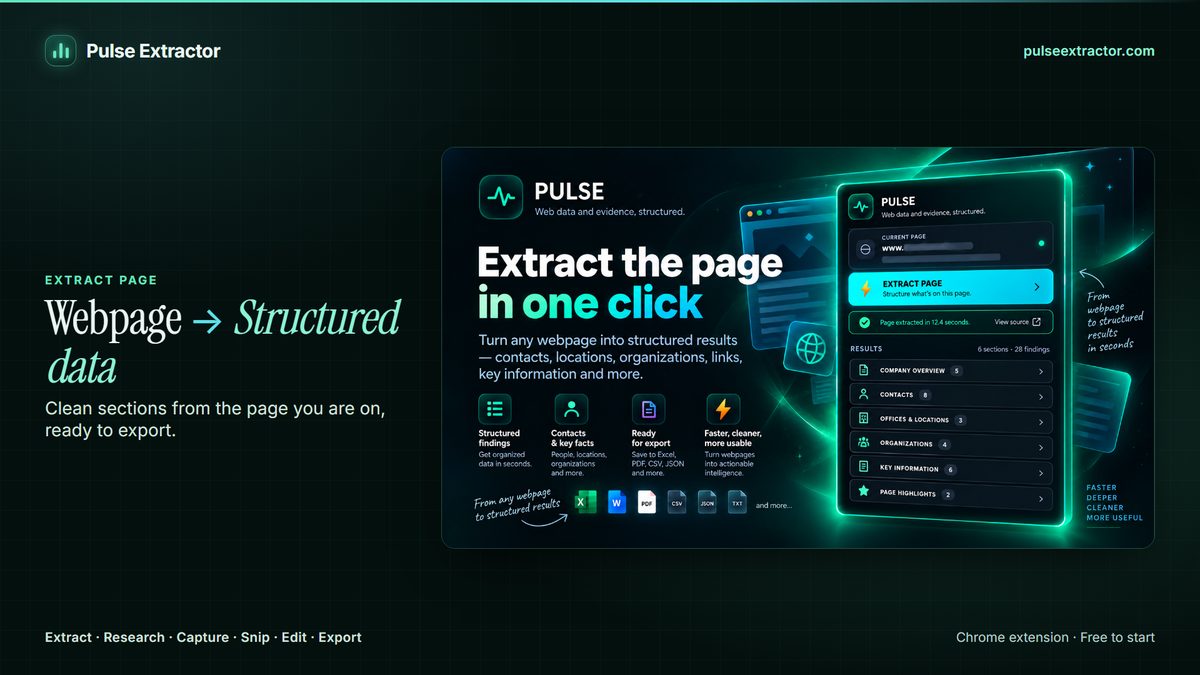
Supplier and procurement research from a published notice
Procurement and tender pages are usually dense and inconsistently formatted. Pulse identifies the tender's own reference number, issuer, category, status and scope, sourced from the tender's own text and not guessed from the page's identity, and structures it into fields you can compare across multiple tenders.
The same extraction supports supplier research from the other direction. Open a supplier's own page or an awarded-contract notice and Pulse structures what that page states (the organization, what it supplies, and the contact route it publishes), so procurement research builds up one verifiable record at a time, each traceable to the page it came from.
Which fields does it pick up?
The ones the notice itself states: reference number, issuing organization, category, status, deadline and scope. They are read from the tender's own text rather than inferred from the site it sits on, so a portal's branding does not get mistaken for the issuer.
Can I build a tracker from several tenders?
Yes. Export each notice to Excel or CSV and the fields land in the same columns, so consecutive tenders stack into one comparable sheet instead of being retyped.
Does Pulse search for tenders, or give me a tender database?
Neither. Pulse is not a tender feed and does not hold a database of notices. You find the notice however you normally do, and Pulse turns the page you are on into a structured record. What it replaces is the retyping, not the sourcing.
Does it work on procurement portals?
It works on the notice page you have open, whichever portal publishes it, because it reads the rendered page rather than relying on a per-site integration. Dense, inconsistently formatted notices are the normal case here, not the exception.
Explore more.
Step by step: How to extract data from a website to Excel
Reviewed by the people already using it.
Exactly what our office needed to speed up data collection. It’s straightforward & efficient. Great productivity booster.
Pulse Extractor saves our team a ton of time on web research. simple, fast, and genuinely useful..
Real published reviews, quoted exactly. Read them on the Chrome Web Store
Turn this page into a structured result.
Install Pulse, create a free account, and extract your first page in under a minute. No card required.